Downloading and Installation of Java version 8
Learn why we need Java software, how to download and install it from Oracle, and the crucial steps for setting up environment variables permanently.

Yaswanth Gudivada
July 28, 2026 · 4 min read
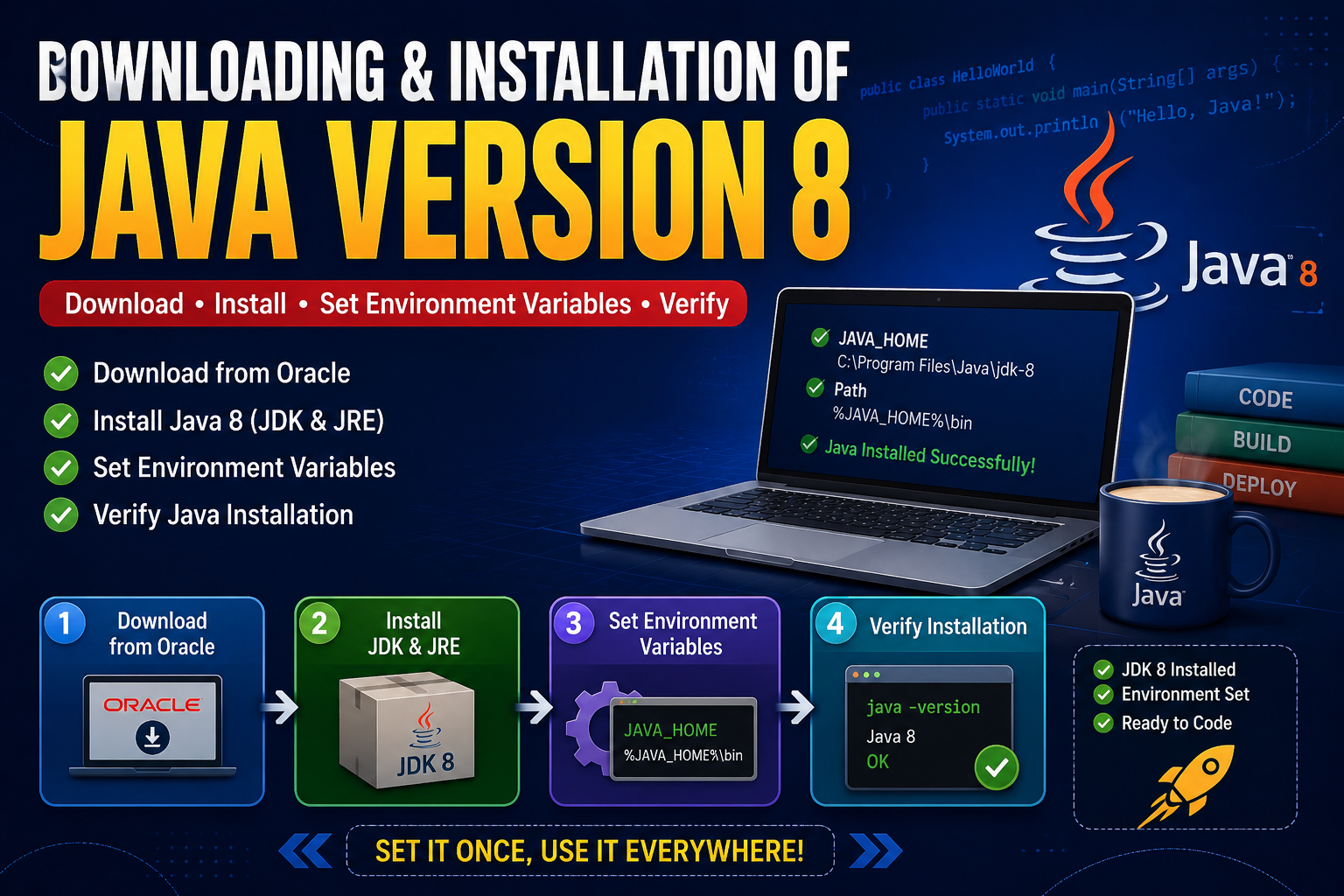
Agenda#
- Why do we need the Java software?
- How to download the Java software? - In Oracle Website
- How to install the Java software?
- How to verify whether Java is properly installed in our machine or not?
- How to set the environment variables temporarily?
- How to set the environment variables permanently?
Why do we need the Java software?#
We need Java software because Java is a programming language, and it has a set of rules and guidelines for writing code.
In Java, we use things like:
- Conditionals (like
if,else) - Loops (like
for,while) - Keywords (like
class,public,static) - Special characters (like
{},(),;)
All these have a special meaning in Java.
If we write Java code directly on our system without Java software, the system will not understand what we wrote. Computers only understand machine language (0s and 1s), not Java code.
So we need Java software to help the system understand and run the code properly.
How to Install Java (JDK and JRE)#
To install Java software, you need to visit the official Oracle website. On the website, go to the Products section and select Java to find the available Java versions for download.
If you want to install Java 8, you must create an Oracle account before downloading. This is because Oracle wants to track the number of users downloading Java 8, so login is required to access the download.
When you install Java 8, you will get a package called JDK 8 (Java Development Kit 8). Installing JDK 8 provides you with two components:
- JDK (Java Development Kit) – Used for developing Java applications (includes compiler and development tools).
- JRE (Java Runtime Environment) – Used for running Java applications.
In older versions like Java 8, the JDK and JRE can be downloaded and installed separately. You can also keep the JDK and JRE in different folder paths, and it will work fine as long as your environment variables are set correctly.
However, starting from Java 9, Oracle made changes:
- The JDK includes the JRE internally.
- A separate JRE is no longer provided for public downloads.
- So, when you install the JDK in newer versions, it already contains the necessary runtime environment.
- There is no need to install or maintain JDK and JRE separately anymore.
This means you don't have to create two separate folders for JDK and JRE in your system when using Java 9 or above.
Why Do We Need to Set the Path in Environment Variables?#
Even though we have installed the Java software, when we try to use it (like running javac or java commands), our system doesn't know where the software is located by default.
We have to tell the system where Java is installed so that it can find and run it from any location in the command prompt or terminal.
To do this, we set the path in the environment variables.
This makes the system remember the location of the Java software, so we can use it easily from anywhere.
Without setting the path, you would have to go to the Java folder every time to run your programs.
How to set the environment variables temporarily?#
Using the set Path command but if we close that cmd it forgets.
We can set the environment variables temporarily using the set Path command in the Command Prompt (cmd).
set Path=C:\Program Files\Java\jdk-version\binThis tells the system where Java is located — but only for that current cmd session.
Important:
If we close the Command Prompt, the system forgets the path. Next time you open cmd, you'll have to set the path again.
That's why it's called a temporary path setting.
How to Set the Environment Variables Permanently?#
To set the environment variables permanently, we need to create a variable called JAVA_HOME.
This is a standard name that many tools and software recognize to find where Java is installed.
Steps to set it permanently:
- Go to System Properties → Environment Variables.
- Under System Variables, click New.
- Set:
- Variable name:
JAVA_HOME - Variable value: Path to your Java JDK folder (e.g.,
C:\Program Files\Java\jdk-21)
- Variable name:
- Now, edit the existing
Pathvariable. - Click New and add:
%JAVA_HOME%\binThis way, Java will work from any command prompt, even after restarting the system.
Now your system permanently remembers where Java is installed.
Understanding React Server Components: A Paradigm Shift
React Server Components (RSC) fundamentally change how we build web applications by moving rendering back to the server. Here is why it matters and how it improves performance.
Introduction to Java
A complete beginner's guide to Java: its history, features, advantages, disadvantages, and why it remains one of the most popular programming languages today.